

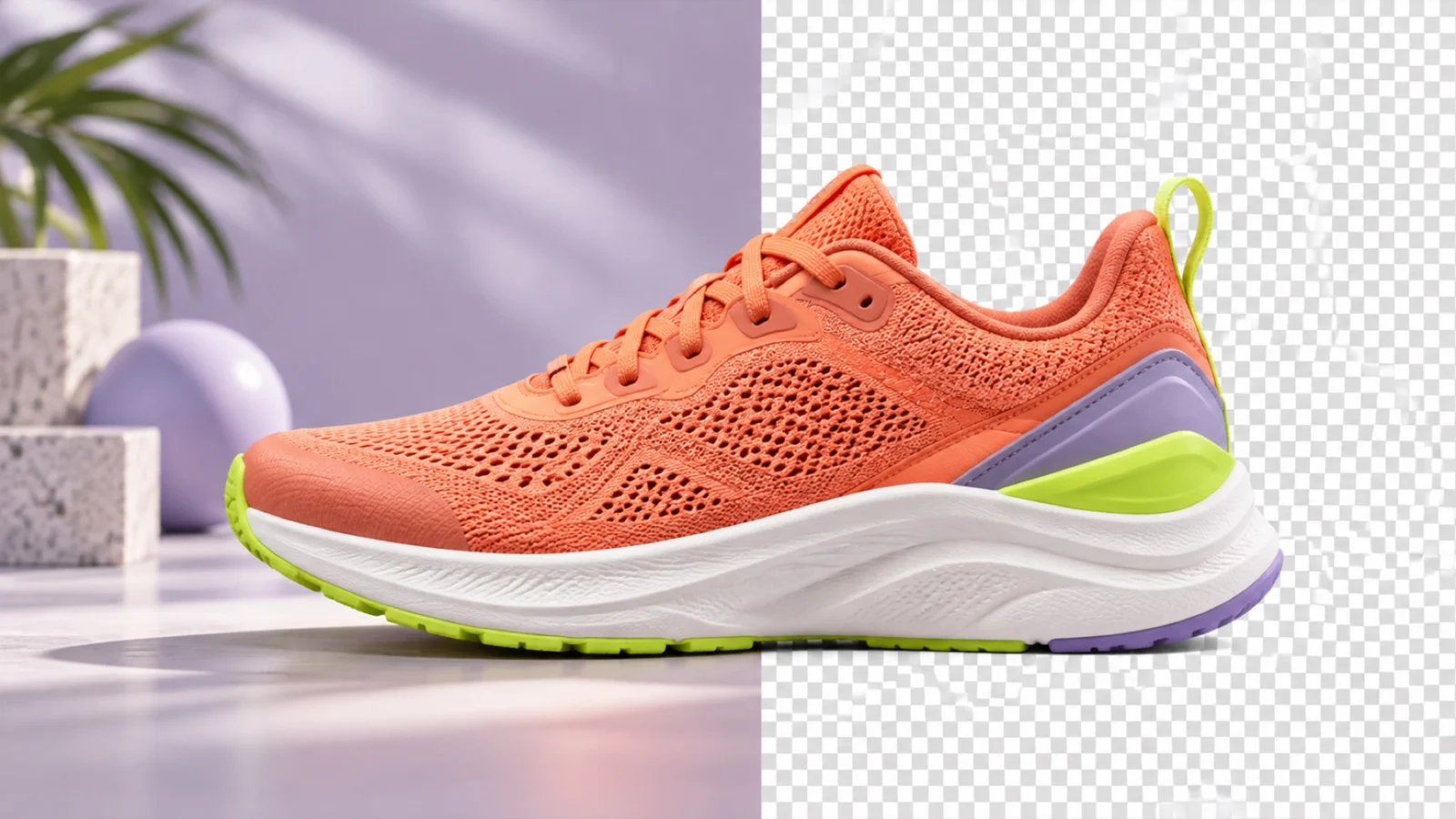
Removing a background no longer requires tracing every edge by hand. A modern AI background remover can isolate a product, person, logo or object in seconds and return a transparent PNG that is ready for a store listing, presentation or social post.
In this guide, you will learn how to remove an image background online, how to prepare a photo for a cleaner result and when a transparent background is the right choice. You can follow the steps with the free Dupli Background Remover in a mobile or desktop browser.
What is an AI background remover?
An AI background remover analyzes an image to identify its main subject and separate it from the surrounding scene. Instead of selecting pixels manually, the tool detects boundaries such as the outline of a product, a person’s clothing or the shape of a graphic. It then removes the background and preserves the subject on a transparent layer.
The result is usually downloaded as a PNG because PNG supports transparency. The gray-and-white checkerboard shown by many editors is only a preview of transparent pixels; it is not part of the final image.
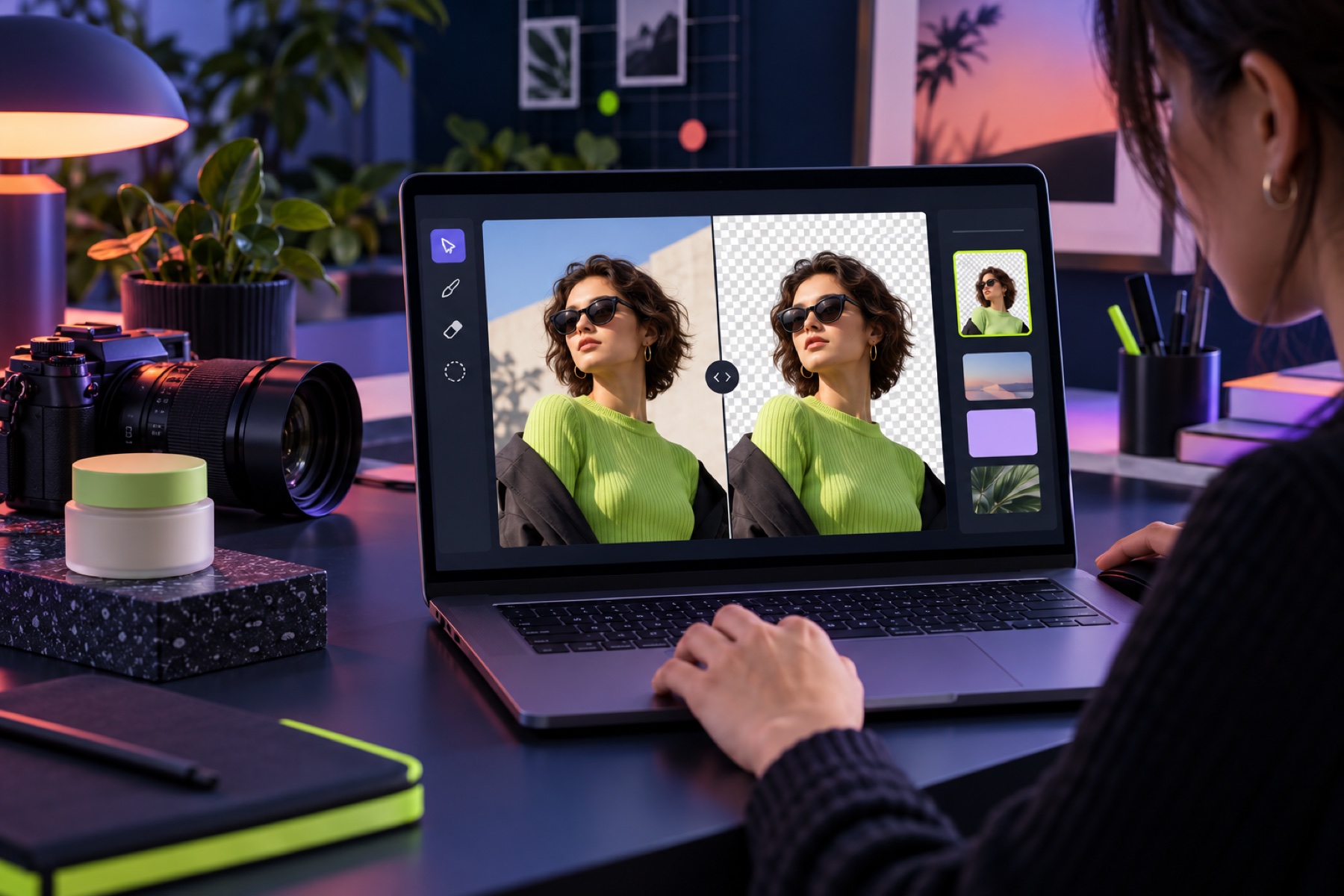
How to remove an image background online
1. Choose a clear image
Start with a JPG, PNG or WebP image that has a recognizable main subject. Good lighting and visible separation between the subject and its surroundings help the AI identify the correct edges. The subject does not need to be photographed in a studio, but a sharp image will usually create a cleaner cutout.
2. Upload the photo
Open the Dupli background removal tool and choose your image, or drag it into the upload area. The free tool accepts images up to the limits displayed beside the uploader. Complete the visible verification when requested and select Remove background.
3. Review the transparent result
Compare the original photo with the processed preview. Pay special attention to hair, reflective products, transparent packaging, shadows and small accessories. These areas are more complex than a solid edge and may look different depending on the original lighting.
4. Download the transparent PNG
Download the finished PNG and place it in your design. The free Dupli tool preserves the image proportions and exports up to 1024 pixels on the longest side. It does not enlarge smaller files.

How to get a cleaner background removal
- Use contrast: a dark product against a dark wall is harder to separate than a subject with a distinct outline.
- Avoid motion blur: sharp boundaries give the model more visual information.
- Keep the full subject in frame: cropped shoes, hair or product handles cannot be reconstructed by background removal alone.
- Use the largest useful original: extra detail helps with narrow edges before the final export is resized.
- Inspect difficult materials: glass, smoke, fur and translucent fabric can require extra review.

Ways to use a transparent PNG
Product photos for ecommerce
A clean cutout makes it easier to place the same product on a white background, a branded color or a promotional layout. This is useful for online stores, marketplace listings, catalogs and seasonal campaigns. Always check the image requirements of the marketplace before publishing.
Portraits and profile images
Removing the original scene lets you reuse a portrait in a speaker card, team page, resume, thumbnail or presentation. A background with strong separation from the hair and clothing generally gives the best result.
Logos, graphics and social posts
A transparent image can be layered over colors, photography and text without showing a rectangular background. It is a practical starting point for announcements, collages, thumbnails, posters and brand graphics.
Transparent, white or colored background?
Choose transparency when you want to keep editing or reuse the subject in several layouts. Choose white for many ecommerce listings and clean catalogs. A brand color can work well for campaigns and social media when it provides enough contrast. Keeping a transparent master file gives you the most flexibility because you can create the other versions later.
Remove a background from mobile or desktop
An online background remover works without installing a desktop application. On a phone, you can select a recent camera photo and save the PNG to your downloads. On desktop, drag-and-drop is convenient when working with files from a camera or product folder. In both cases, use a current browser and keep the page open while the image is processed.
Start with Dupli’s free background remover
Dupli lets you try background removal without creating an account. Free use includes up to three images per day, visible CAPTCHA verification and transparent PNG downloads up to 1024 pixels. Images are sent to the background-removal provider for processing and are not automatically added to your Dupli project library.
Remove an image background online with Dupli, then use the transparent PNG in your next design.